The swaag.org website uses cookies to provide website use and other information. Full details Swaledale and Arkengarthdale Archaeology Group

SWAAG Honorary President:
Tim Laurie FSA

An update to this document has been published on Lulu.
View
sample maps (pdf) created by the techniques described. Zoom in to them to see their quality.

Archaeological landscape surveying and mapping
 using hand held GPS receivers.

S P Eastmead  First published November 2009


Summary
A method of producing accurate archaeological maps has been devised using modern hand held GPS receivers (GPSr). Free or low cost software has been used to produce maps suitable for publication. Free on-line data stores enabled Swaledale and Arkengarthdale Archaeology Group members to permanent store and access survey data.

For a detailed description of this technique see this web-page.

Introduction
In June 2009 a group of enthusiasts in and around Swaledale planned to contribute to the historical knowledge base of our dales through the full range of archaeological and associated activity. Swaledale and Arkengarthdale Archaeology Group (SWAAG), was formed as an associated friend of the Swaledale Museum. The group began work under the guidance and supervision and now SWAAG President: Tim Laurie, the leading expert on prehistoric landscapes in the area, with many landscape surveys, excavations and publications to his credit. 

The group began surveying a relatively large Romano-British settlement landscape approximately 2 miles east of Reeth, North Yorkshire, UK. The quest was to use basic computer resources to produce a series of A4 size ‘publication standard’ survey maps ranging in scale. 

GPSr Instruments
The group initially had access to two models of GPSr, both manufactured by Garmin. The Garmin eTREX, and the Garmin GPSmap 60CSx.

General Surveying Technique
SWAAG membership was keen to extend surveying to record and map: the existing field boundaries, ancient trees and relic hedgerows. The archaeology and tree and hedgerow surveys produced four types of data: detailed written logs, photographs, GPS waypoints and written log sheets for each recorded feature.

The group used Microsoft’s Windows Live SkyDrive as an off site permanent data archive. In 2010 SkyDrive provides up to 25GB of free data storage, accessed by email address and password. On SWAAG’s SkyDrive a site surveying folder was created, then for each surveying day a subfolder was generated with a name format in the form of ‘yyyy-mm-dd_site_area_name’.

Within this folder all photographs and GPS waypoints are stored, together with images of the written log. Using a Word document template, the hand written feature logs were entered, a feature reference number allocated and the final document stored in the archive folder.

The main written log cross referenced waypoint coordinates with associated photo ID numbers, features, feature logs, and any other descriptions and sketches that were made to facilitate mapping. It was found helpful if both GPSr waypoint numbers and camera image numbers were reset to start at 001 for each survey day.

Whilst one person could survey alone, three person teams were found to be ideal, when the main tasks of taking GPSr waypoints, photographic images and writing feature sheets and survey log entries, could be shared.

Buying a GPS
To state the obvious you get what you pay for. Make sure it has a USB port, some older Garmin models that are still available have a serial port instead. You will find it diffecult to connect a GPSr with just a serial port to a modern computer. It is also recommended not to buy a model that has a little stubby 'joystick' multifunction control like the Etrex below. They can be very frustrating to use.


Joystick control - Not recommended

It is highly recommended to buy a model that allows you to record a GPS waypoint by pressing a single dedicated (MARK) button and perhaps a second button to 'Enter' a confirmation.  You will be doing this hundreds of times so it has to be easy.

Preferably buy a GPSr where WAAS correction can be enabled.

Models that have a better developed internal aerial generally seem to perform better in marginal conditions e.g. when near tree cover or hills. Look for receivers that are classified as 'high - sensitivity'. So far all SWAAG published maps are based on waypoint data measured using the Garmin GPSMAP 60CSx. This model was still available in Dec 2010 but has been superceded by GPSMAP 62s models. The GPSMAP 60CSx and 62s both can accept an external aerial which I have found useful in marginal GPS reception areas.

Recently I have seen a Garmin model that has 'touch screen' technology. I have not used one, but would be cautious in buying such a model. From a surveying point of view you want to be able to mark waypoints without having to look at the screen all the time, and secondly, you need to be able to put it in and out of pockets so that you can write in your log or take photographs, without accidentally selecting functions on the 'touch screen'.


Simple Mark and Enter buttons to record waypoints and a better aerial.


GPSr Performance
A basic comparison of GPSr’s, by measuring the same regular features in an open aspect, gave encouraging results.  When comparing the data obtained from the two Garmin models, all pairs of waypoints when plotted were within one metre of each other. On and near hillsides, and when there was partial tree cover, the GPSmap 60CSx had a better performance and was used.

 The GPS waypoint accuracy and the site reception conditions dictate the lower limit in which we could use this type of instrument as an archaeological survey tool. (Although this can be extended using an external aerial)

GPSr units indicate an accuracy level when making waypoint measurements. This is a value relative to the actual location co-ordinates, and not the comparative accuracy of one waypoint measurement relative to an adjacent one. The practical lower limit in using modern hand held GPSr’s was found to be when measuring features in the order of 4 or 5 metres in diameter.

Note experience has shown that accuracy can decline significantly as the batteries are getting low but before the GPS shuts down due to the low battery power. It is highly recommended to used high capacity rechargeable batteries which are freshly recharged before each survey day. All the Garmin instruments I have used use AA batteries. Buy rechargeable AA batteries that are rated at least 3000mAh.

Prior to using your GPSr make sure that it has been configured correctly particularly settings for the desired latitude and longitude or a preferred mapping grid system, and that the correct datum has been selected. In the UK this is usually the British National Grid using OSGB-36 datum.

Taking Waypoint Measurements Summary:

  1. Always use freshly charged or new batteries
  2. Turn your GPSr on 5 or 10 minutes before using it.
  3. Set the GPSr to indicate feet rather than metres, so that the current waypoint accuracy in feet is displayed. This gives you a more sensitive indication on how the GPSr is performing whilst taking measurements.
  4. Display the GPSr map page zoomed in to the maximum setting (20 feet usually).
  5. Have an indicated accuracy figure as low as possible and preferably below 20ft and ideally below 15 feet. Consider using an external aerial when the GPSr indicates an accuracy in excess of 20 feet.
  6. Make at least 8 to 10 waypoints around the boundary of small features. Always holding the GPSr upright at chest height.
  7. Before taking each waypoint measurement, watch the map indicator arrow on the GPSr unit (at maximum zoom) until it has settled down. Usually about 5-10 seconds.
  8. Inbetween waypoint measurements keep the GPSr in the same position. If you drop your arms down or put the GPSr in your pocket, you must let it stabilise again at chest height before taking you next measurement.
  9. Draw a plan view in the log so this can be compared with the waypoint data plot.
  10. Take your time. Hurried measurements will lead to inaccuracy.
  11. More measurements is always better than fewer.
  12. Remember proximity to trees, buildings, hillsides can degrade your readings.

If you compare repeat surveys on subsequent days, there will be small differences in actual positions of a feature, but its general appearance and shape should stay true. These small differences are not significant when reducing the data down to an A4 size map (21 x29.7cm or 81/4 x 115/8 inches).

Unless the site has poor GPS reception, there will only be a small percentage of rogue measurements (<2%) and these are generally relatively small errors. If you take an adequate number of measurements when surveying, then the rogues are readily identifiable and can be discarded. Always take more rather than less readings.

Generally when measuring long linear features you can take a series of waypoints whilst walking along its length, but any time you have separate features within 4 or 5 metres of each other, then waypoints should be taken as described in the list 1 to 7 above.

Mapping
A multistage mapping technique has been devised using 3 primary software packages (See Software and Websites below). Two are freeware and the third DrawPlus 8 costs less than £10 or $10 (2009).  NOTE In 2010 you may be able to buy DrawPlus X3 for about the same price, the current version being DrawPlus X4 which is about £80. DP8 is more than adequate.

The mapping process itself has many small stages but none are difficult.
Describing these stages in detail is beyond the scope of this paper but they can be found here

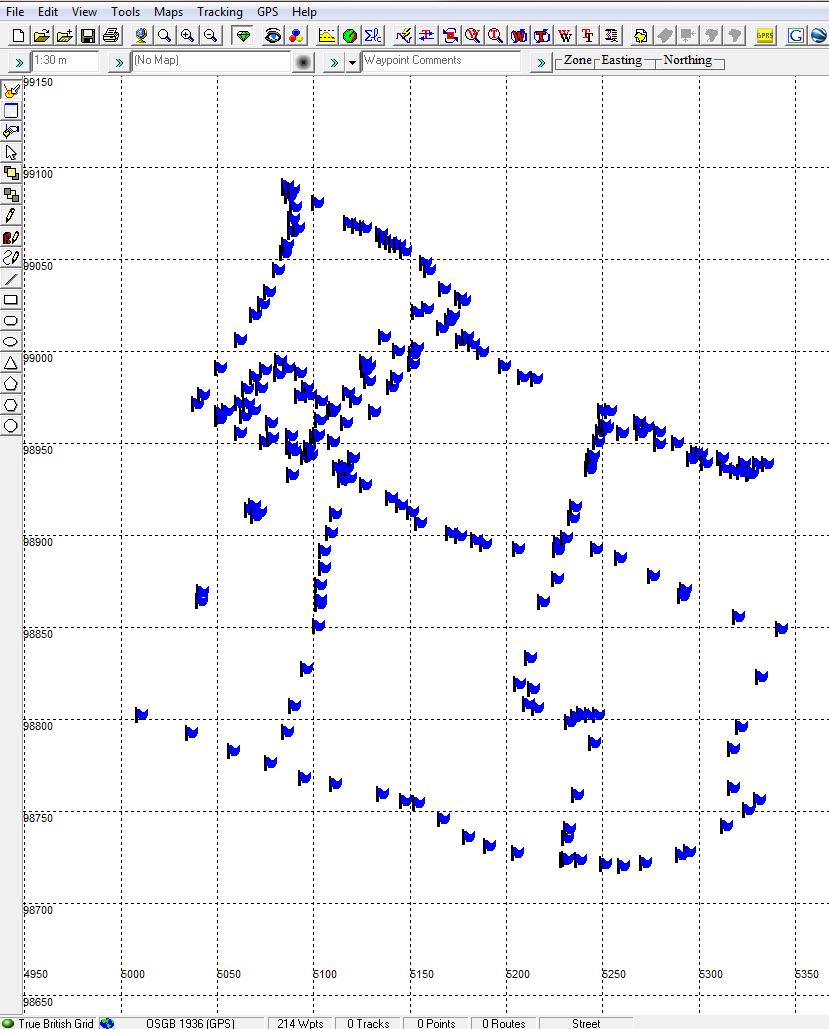
Briefly, GPSr data is initially processed using GPS TrackMaker (TM) software, by connecting waypoints in a manner that denotes specific survey features. TM is configured to display this data against the co-ordinate system and datum of choice.  The file merge facility enables multiple surveys to be amalgamated into a single file. The area to be mapped is then sized in TM to fill as much of the screen as possible. The print screen key is used to copy the screen. The screen image is pasted into IrfanView image processing software. IrfanView image cropping is used to further refine the area to be mapped, and the resultant TM baseline filename.jpg file is saved to disk.

This baseline jpg file is then used as the base layer in Serif’s DrawPlus 8 (DP8).  When imported, the image is proportionately sized so that it fits the chosen paper size at the required scale. The final maps are produced by accurately tracing over this layer. Typically new layers are generated to show different types of data. For example:

  • Baseline TM .jpg image
  • Field Boundaries
  • Archaeology
  • Coordinate Grid
  • Text Labels

When producing more complex maps the archaeology can be broken down into sub-layers e.g.

  • Settlements
  • Mounds
  • Cairns
  • Lynchets
  • Ancient field boundaries
  • Finds

The necessary archaeological symbols can easily be imported or drawn within DP8 and stored for subsequent use. Similarly archaeological line styles can be configured for boundaries, hachures, rig and furrow and any similar requirements. These can be varied in size and horizontal spacing by editing 2 parameters. Layers can be controlled so their status can be toggled: unlocked/locked, printable/not printable or visible/hidden.

Software and Website
GPS TrackMaker - Freeware GPS utility
IrfanView - Freeware image editor
Serif’s DrawPlus Graphic program. NOTE: The freeware version is not suitable as too many functions are disabled. The cheap version will change as Serif releases new versions. Archaeological mapping does not need the latest version, go for the cheapest full version. Alternatively search Google or Ebay for a low cost secondhand version of DrawPlus 8 or DrawPlus X2.


The following websites and software can be very useful

Google Earth freeware

EasyGPS A simple utility to download your GPS waypoints to your PC - freeware
GPS Utility supports numerous GPS data file types
Windows Live SkyDrive Online free storage (25GB) Hotmail email address and password required. Once you have logged on go to More/SkyDrive.
SDExplorer SkyDrive file management tool.

Mapping Stages

  • Mapping Stage 1

    Figure 1. Survey data as it is downloaded from the GPSr into GPS TrackMaker, where appropriate waypoints are linked with lines.


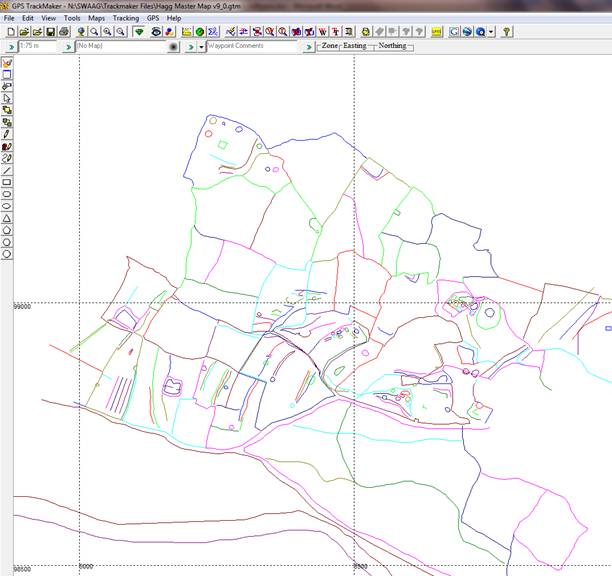
  • Mapping Stage 2

    Figure 2. All survey days data can be merged in GPS TrackMaker to form a study area waypoint map. (Waypoints have been hidden for clarity) Fig. 1 data is on the western side


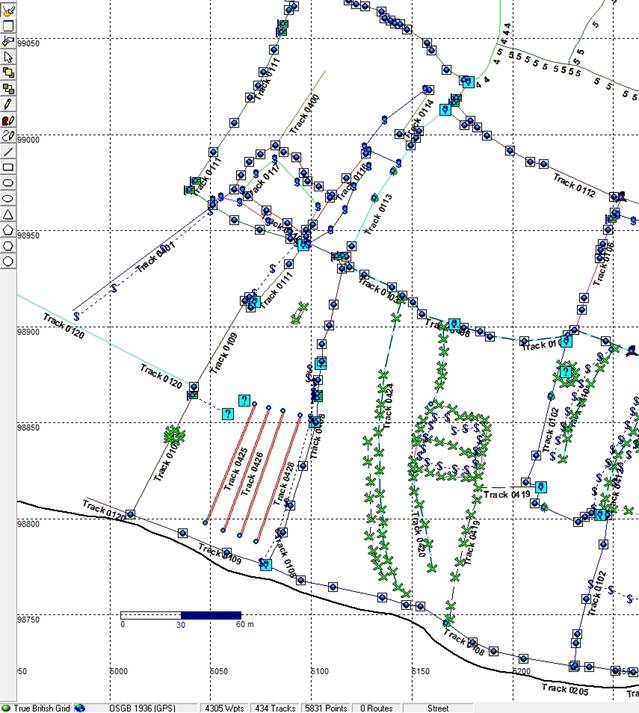
  • Mapping Stage 3

Figure 3. GPS TrackMaker allows zooming into whole site data to select area to map. This is the image that is imported and the scale adjusted in DrawPlus 8. The final map is then produced by drawing layers on top of this image.


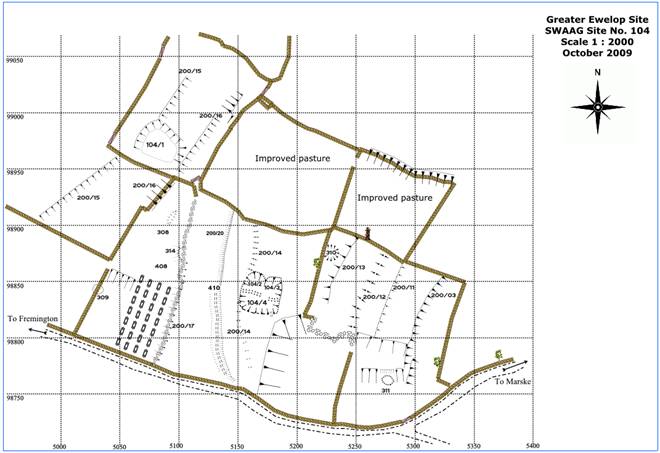
  • Mapping Stage 4

    Figure 4. Final Map with the baseline TM image layer hidden


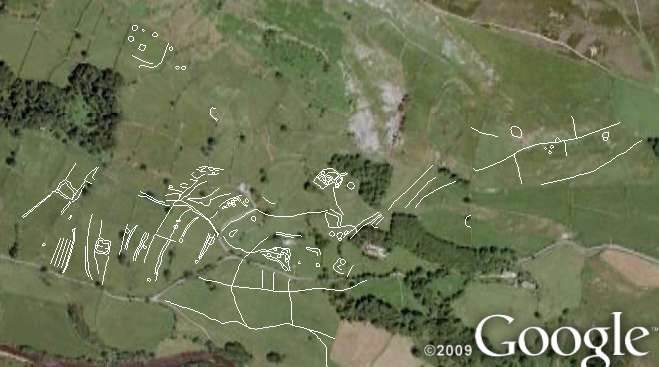
Use of merged TrackMaker GPS data in Google Earth
Note Google Earth images based on WGS84 datum

 Creative Commons Licence
SWAAG GPS Surveying Technology - 7 papers by Stephen Eastmead is licensed under a Creative Commons Attribution-NonCommercial-NoDerivs 3.0 Unported License.
Based on a work at www.swaag.org.